Two settings decide how an outline icon looks on screen: the size you render it at and its stroke-width. They aren't independent. Lucide, Tabler, and Heroicons outline draw open lines with fill="none" on a 24-unit grid, and those lines scale with the icon, so changing the size changes the line weight too.
Below I start with which sizes to use and why each icon set's grid matters. Then I cover what the stroke number measures, how to keep line weight constant across sizes, where thick strokes get cut off, and how to size icons next to text.
The images and percentages come from a script that renders the icons through Icony's own export code and rasterizes them with librsvg. Each caption states the conditions.
Choosing sizes
- 16px: dense UI such as table rows, menus, and icons inline with 13–14px text.
- 20px: buttons, form fields, and compact toolbars next to 14–16px text.
- 24px: the default for navigation and standalone app icons, and the size most icon sets are drawn at.
- 32–48px: feature highlights, empty states, and onboarding.
- 64px and up: illustrations and marketing. At this size, consider a more detailed illustration instead of a UI icon.
These are conventions, not rules. It matters more that each size you use lines up with the grid your icons were drawn on.
Know your icon set's native grid
Every icon library is drawn inside a fixed viewBox. These are the packages installed in Icony:
- Lucide, Tabler, Heroicons outline and solid:
viewBox="0 0 24 24". - Heroicons mini: 20×20. Heroicons micro: 16×16. These are separate drawings, not the 24px icons scaled down.
- Bootstrap Icons: 16×16.
- Radix Icons: 15×15, rendered at 15px by default.
- Phosphor: 256×256. The grid is fine enough that it has no single native pixel size; its weights were tuned to look right across common UI sizes.
When an icon renders at its grid size, one grid unit equals one CSS pixel, and any line the designer placed on a whole-number coordinate lands exactly on the pixel grid. At exact multiples (2×, 3×) that still holds.
At other sizes, every coordinate is multiplied by an awkward fraction. Edges end up partway through pixels, where the browser blends them with the background (anti-aliasing), and that blending is what looks soft.
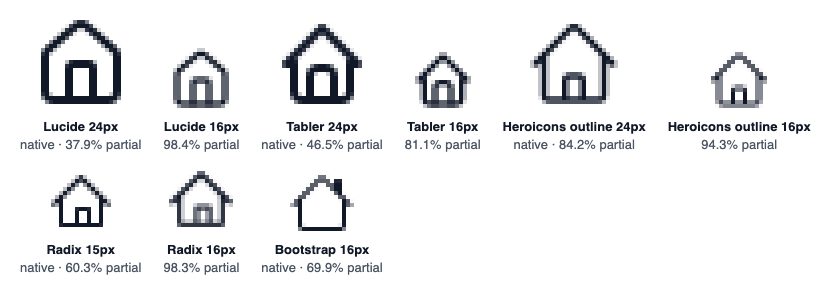
One pixel off the grid is enough. Radix's home icon has 60.3% partial pixels at its native 15px and 98.3% at 16px. Lucide's house goes from 37.9% at 24px to 98.4% at 16px. The blurry SVG icons guide measures more sizes and the other causes of soft edges.
Rule of thumb: use your icon set's grid size and its whole multiples as your main sizes. For 24-grid sets that means 24 and 48, with 16 and 20 accepted as the standard compromises for small UI.
What the stroke number measures
stroke-width is measured in user units, the coordinate system defined by the icon's viewBox, not in screen pixels. Almost every modern outline set uses a 24×24 viewBox, so stroke-width="2" means “a line one-twelfth as thick as the icon is wide.” When the browser scales the viewBox to the element's rendered width, the stroke is scaled along with the shapes:
rendered stroke (CSS px) = stroke-width × (rendered size ÷ viewBox width)

Lucide / Tabler, stroke-width="2", viewBox 24:
  16px icon → 2 × 16/24 = 1.33px
  20px icon → 2 × 20/24 = 1.67px
  24px icon → 2 × 24/24 = 2.00px
  32px icon → 2 × 32/24 = 2.67px
  48px icon → 2 × 48/24 = 4.00px

Heroicons outline, stroke-width="1.5", viewBox 24:
  16px → 1.00px   20px → 1.25px   24px → 1.50px
So the number equals screen pixels only when the viewBox size equals the rendered size, as with a 24-unit icon shown at 24px. A default Lucide icon looks noticeably heavier at 48px than at 24px: the proportions are the same, but the line is twice as thick while your body text stays put.
Small sizes go the other way: a default 16px icon has 1.33px lines, which look lighter than the same icon at 24px.
The stroke is also centered on the path: half of the width falls inside the shape's outline and half outside. Going from 2 to 3 therefore grows the line by 0.5 units in each direction, which matters when the artwork is close to the edge of the viewBox (more on that below).
The defaults each library ships
I rendered one icon from each package installed in Icony's codebase with no props and read the output. Here is what you get before you change anything:
- Lucide (lucide-react 0.460):
stroke-width="2"on the root<svg>, round caps and joins. ThestrokeWidthprop changes it. - Tabler (@tabler/icons-react 3.36): also
2, round caps and joins. The prop is calledstroke, notstrokeWidth. - Heroicons outline (2.2.0):
stroke-width="1.5"on the root, with round caps and joins set on each path. The component spreads your props after its defaults, so passingstrokeWidth={2}does override it. - Phosphor (2.1.10): no stroke at all. Every weight is a separate filled outline. See the next section.
- Heroicons solid, Tabler filled, Bootstrap Icons, Radix Icons: fill-based. You can pass a
stroke-widthand it will appear in the markup, but with nostrokecolor there is nothing for it to thicken.
Measured on lucide-react 0.460.0, the version Icony ships; newer releases add icons but keep the same drawing rules.
Mixing libraries is the most common reason a UI's icons look inconsistent. Heroicons at its default 1.5 next to Lucide at its default 2 will look like two weights, because they are. Pick one value and set it explicitly on both.
Phosphor: weights instead of widths
Phosphor ships six styles (thin, light, regular, bold, fill, duotone) as separate artwork on a 256×256 grid. Each “line” is really a filled shape with rounded ends, so you can measure its thickness from the arc radius in the path data:
<!-- Phosphor 2.1.10, "check" icon, viewBox 0 0 256 256 -->
<!-- regular: rounded ends use radius 8, so the bar is 16 units wide -->
<path d="M229.66,77.66l-128,128a8,8,0,0,1-11.32,0 …"/>
<!-- bold: radius 12, so the bar is 24 units wide -->
<path d="M232.49,80.49l-128,128a12,12,0,0,1-17,0 …"/>
I read the end radius of the "check" icon in all four line weights (4, 6, 8, and 12) and scaled the bar width to a 24-unit grid. The rough stroke-width equivalents are thin ≈ 0.75, light ≈ 1.125, regular ≈ 1.5, and bold ≈ 2.25, which puts Phosphor regular close to Heroicons outline and Phosphor bold slightly heavier than Lucide's default.
You can't choose values in between; you pick a weight. When Icony's stroke slider is used on a Phosphor icon, it maps the value to a weight with fixed thresholds: above 2.5 is bold, above 1.75 regular, above 1 light, and anything else thin.
Keeping line weight consistent across sizes
Design systems usually want every icon to have the same line thickness on screen, whether it's a 16px icon in a table row or a 32px icon in an empty state. Because stroke-width scales with the icon, you have to compensate. There are three ways to do it.
1. Set the width per size. The formula is stroke-width = target px × viewBox width ÷ rendered size. It needs no special features and works in exported files as well as in the browser:
/* Keep lines visually ~1.5px at every size (24-unit viewBox) */
.icon     { stroke-width: 2; }      /* default: 24px → 2px */
.icon-16  { stroke-width: 2.25; }   /* 16px → 1.5px  (1.5 × 24 / 16) */
.icon-20  { stroke-width: 1.8; }    /* 20px → 1.5px  (1.5 × 24 / 20) */
.icon-32  { stroke-width: 1.125; }  /* 32px → 1.5px  (1.5 × 24 / 32) */
.icon-48  { stroke-width: 0.75; }   /* 48px → 1.5px  (1.5 × 24 / 48) */
2. Use Lucide's absoluteStrokeWidth. Lucide's React component has this compensation built in. Its source multiplies strokeWidth by 24 / size when the flag is set, which I confirmed by rendering:
import { Check } from 'lucide-react';

// strokeWidth is multiplied by 24 / size before it is written out
<Check size={48} strokeWidth={1} absoluteStrokeWidth />
// renders: width="48" viewBox="0 0 24 24" stroke-width="0.5"
// 0.5 units × (48 / 24) = 1px on screen, the same as a 24px icon at 1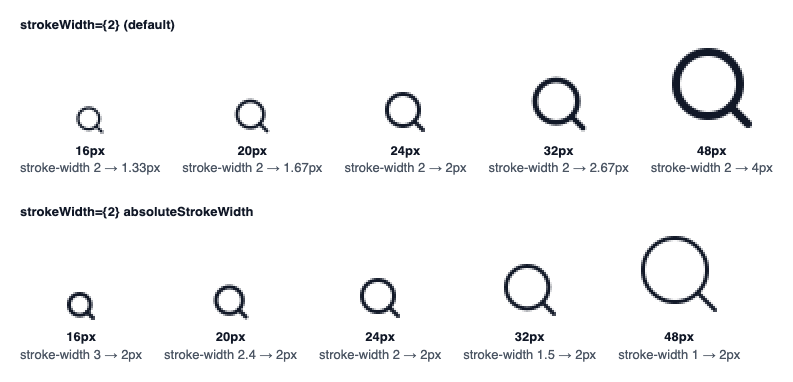
Search with strokeWidth={2} (lucide-react 0.460.0), rendered with react-dom/server, rasterized by librsvg and enlarged 2×. Under each icon: the stroke-width Lucide writes into the markup, and the line width that gives on screen (stroke-width × size ÷ 24).In the bottom row Lucide writes 3 at 16px, 2.4 at 20px, 1.5 at 32px, and 1 at 48px, and every line comes out at 2px.
3. Use vector-effect: non-scaling-stroke. This CSS property (also available as an SVG attribute) makes the browser apply the stroke width in the screen's coordinate system rather than the icon's, so the line stays at the width you set at any icon size. Apply it to the shapes, not the root <svg>. It only works on inline SVG you control:
/* Stroke measured in screen pixels instead of viewBox units */
.icon :is(path, circle, rect, line, polyline, polygon, ellipse) {
  vector-effect: non-scaling-stroke;
  stroke-width: 1.5px;
}
If the icons will also be exported as files, use per-size values or absoluteStrokeWidth, since a PNG or a standalone SVG doesn't carry your CSS. For icons that live only inside your app, especially ones resized fluidly with em or container units, use non-scaling-stroke.
Constant stroke is not always the right choice. The 48px search icon above looks thin with a 2px line, and a small icon with heavy lines can fill in. Try both at your real sizes before standardizing.
Thick strokes and clipping
Icon grids leave a small margin, but not much. Because the stroke is centered on the path, anything drawn near the edge of the viewBox runs out of room as the width goes up. Lucide's heart shows this well, since its outline touches the left and right keylines exactly:
<!-- Lucide "heart": the outline reaches x = 2 and x = 22 -->
<svg viewBox="0 0 24 24" fill="none" stroke="currentColor" stroke-width="2">
  <path d="M19 14c1.49-1.46 3-3.21 3-5.5A5.5 5.5 0 0 0 16.5 3
           c-1.76 0-3 .5-4.5 2-1.5-1.5-2.74-2-4.5-2
           A5.5 5.5 0 0 0 2 8.5c0 2.3 1.5 4.05 3 5.5l7 7Z" />
</svg>
<!-- stroke-width 2 → outer edge at x = 1   (1 unit of margin)
     stroke-width 4 → outer edge at x = 0   (touching the edge)
     stroke-width 5 → outer edge at x = -0.5 (clipped) -->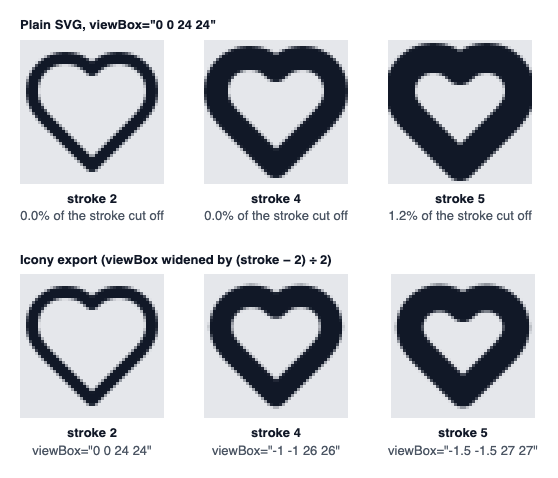
Heart at 48px, stroke 2, 4 and 5, rasterized by librsvg and enlarged 3×; the gray square is the icon box. "Cut off" is the share of the stroke that falls outside 0 0 24 24, measured by rendering the same markup on a canvas 4 units wider on each side.Measured that way, the outline's outer edge sits at x = 1 at stroke 2, x = 0 at stroke 4, and x = −0.5 at stroke 5, where 1.2% of the stroke falls outside the viewBox. So for shapes that come within 2 units of the edge, anything above 4 clips unless you make room.
Round caps and joins extend the same half-width beyond the endpoints, so line ends near the edge clip too. SVG clips to the viewBox by default. If you need heavy weights, either allow overflow or give the artwork more room:
/* Option 1: let the stroke paint outside the box */
svg.icon-heavy { overflow: visible; }
<!-- Option 2: widen the viewBox so the artwork has room
(artwork 2 units from the edge + 1 extra unit = room for stroke-width 6) -->
<svg viewBox="-1 -1 26 26" …>Widening the viewBox makes the drawn icon slightly smaller inside the same box (24 of 26 units instead of 24 of 24), so do it for the whole set, not for individual icons. Rasterizers face the same issue, and drawing the image smaller on the canvas doesn't help: an SVG loaded as an image is already clipped to its own viewBox.
So Icony's exports (PNG, SVG, copied code, and ZIP) widen the viewBox itself, by exactly the extra half-width: (stroke − native stroke) ÷ 2 units on each side. The native stroke is 2 for Lucide and Tabler and 1.5 for Heroicons.
At or below the native weight nothing changes and the icon fills its box edge to edge. At stroke 4, a Lucide icon is drawn in a 26-unit box, so a 32px export shows its 24-unit grid at about 29.5px. Filled sets such as Phosphor, Bootstrap, and Radix have no stroke to grow, so they are never shrunk. When you line exported icons up against other artwork, measure the visible glyph, not the canvas.
Crisp lines at small sizes
On a standard-density screen, a 1.33px line can't cover whole pixels, so anti-aliasing spreads it across two rows of partially shaded pixels. Next to text it looks slightly gray and soft.
High-density screens hide this. For small icons on 1× displays, choose combinations that land on whole pixels: 1.5 at 16px (1px), 2 at 24px (2px), or 1.5 at 32px (2px).
Lines whose edges fall between pixels can still blur at the right width. That is a drawing and positioning problem, and fixing blurry SVG icons walks through it with measurements.
Sizing icons next to text
Icons that sit next to a label should follow the label's font size. Size them in em and they scale automatically when the text changes, including when the user raises their browser's default font size:
/* An icon that follows the size of the text next to it */
.icon-inline {
  width: 1.25em;
  height: 1.25em;
  flex-shrink: 0;           /* stop flexbox from squashing it */
}

/* Align icon and label on their centers instead of the text baseline */
.with-icon {
  display: inline-flex;
  align-items: center;
  gap: 0.375em;             /* spacing scales with the font, too */
}

/* Inline in running text, where flexbox is not an option */
.icon-in-text {
  width: 1em;
  height: 1em;
  vertical-align: -0.125em; /* nudge down so it sits on the baseline visually */
}
<button class="with-icon">
<svg class="icon-inline" aria-hidden="true" viewBox="0 0 24 24">…</svg>
Download
</button>A few details make this work:
- Pick the ratio by eye, then keep it. As a rule of thumb, icons often look balanced at about 1.15–1.4× the font size, because icon glyphs don't fill their box the way capital letters do. A 16px label with a 20px icon (1.25×) is a common match.
- Center with flexbox, not by nudging margins.
align-items: centerputs the icon in the middle of the line box. For icons inside running text, a small negativevertical-alignis the usual fix. - Always set
flex-shrink: 0. In a narrow flex container, the browser will shrink the icon before it wraps the text, and you end up with a squashed 11px icon. - Use the size your icon set was designed for when you can. If your labels are 14px and your icons come out at about 17.5px, rounding to 16 or 20 is usually better than keeping the exact ratio.
Standalone icons in fixed-size controls can stay in pixels, as long as the control itself grows with the text. Either way, keep width and height in the SVG markup even when CSS sets the size: they apply before your stylesheet loads and prevent a flash of oversized icons.
The icon is also not the click target. Keep it at its visual size and make the button around it larger; accessible SVG icons covers the minimum target size.
Where size and stroke changes go wrong
- Adjusting stroke on a filled icon. Nothing happens because there is no stroke. Switch to the outline variant, or for Phosphor choose a different weight.
- Mixing up prop names. Tabler's React components document
stroke={1.5}; Lucide and Heroicons usestrokeWidth. In the Tabler version I tested,strokeWidthalso happens to work because extra props are passed through to the<svg>. But passing a color string to Tabler'sstrokeout of habit won't change the color, because that prop is the width. - Setting stroke-width on the root when shapes have their own. Hand-exported SVGs often repeat
stroke-widthon every path. A value on the root is inherited only where the child doesn't set one; override with a CSS rule on the shapes instead. - Changing caps and joins to “sharpen” an icon. Switching
stroke-linecapfrom round to butt makes short strokes look thinner and uneven, because the libraries' artwork was designed around round ends. - Resizing with
transform: scale(). A CSS transform scales the whole rendering, stroke included, and leaves the layout box at its original size. Resize icons withwidthandheightso the stroke math above still applies. - Scaling a small-grid icon up. A 16px micro icon at 24px looks crude, because it was simplified for its small size. Use the 24px drawing instead.
- Using Radix at 16px because “16 is standard”. Its 15px grid makes 15 and 30 the sharp sizes.
- Sizing with
font-sizeon components that use fixed pixel sizes. Lucide and Tabler default tosize={24}, so the icon ignores the surrounding font. Pass a size, or setwidthandheightin CSS.
Choosing a weight for your UI
No single width is right for everyone, but a few criteria help:
- Match your text. Put the icon next to the label it will actually sit beside. The icon's line should look close to the thickness of the letters' vertical strokes. Regular-weight UI text at 14–16px often pairs well, as a rule of thumb, with rendered lines of about 1.25–2px; semibold labels can take 2px or a little more.
- Heavier for small and busy contexts. Toolbars, tab bars, and dense tables do better with a slightly heavier line, since thin lines at 16px or smaller start to break up.
- Lighter for large, decorative sizes. Feature illustrations and empty states at 48px and up usually look better with a lighter line (1–1.5 units), or with
absoluteStrokeWidth, so they don't look clumsy. - One value per product. Choose a single rendered line thickness, derive the per-size values from it, and apply it to every library in the project. Icons from several sets will then look like one family.